How to Use Friends System in Minecraft
Introduction
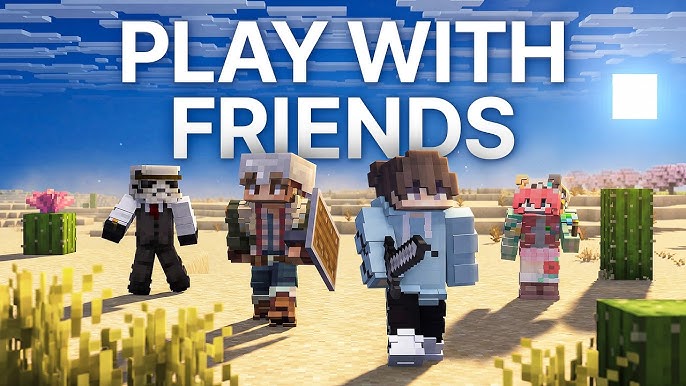
Minecraft becomes more exciting when you can share your creations and adventures with other players. The Friends System in Minecraft APK allows you to connect with friends, invite them to your worlds, and join their multiplayer sessions easily. Instead of searching for players every time, you can create a friend list and enjoy smoother online gameplay with people you know.
Understanding the Minecraft Friends Feature
The Friends System is a multiplayer option that helps players stay connected inside Minecraft. By using this feature, you can find your friends, check their online status, and play together in shared worlds.
This system is connected with a Microsoft account, which allows players on supported devices to communicate and join games across different platforms.
Requirements for Using Friends System
Before using this feature, make sure your device meets these requirements:
| Requirement | Details |
| Microsoft Account | Needed to connect with other players. |
| Internet Access | Required for online features. |
| Latest Minecraft Version | Helps avoid compatibility issues. |
| Multiplayer Permission | Must be enabled for joining games. |
Steps to Add Friends in Minecraft
Sign In to Your Account
First, open Minecraft and log in using your Microsoft account. This account works as your connection point for multiplayer features.
Access the Friends Menu
Launch the game and open the Play section. Select the Friends option to view your current friend list or add new players.
Find a Player
Choose the add friend option and enter your friend’s Microsoft Gamertag. Double-check the spelling because an incorrect username will not show the right player.
Accept and Connect
After sending a friend request, wait for your friend to accept it. Once approved, the player will become available in your Minecraft friends list.
How to Play With Added Friends
After adding friends, you can invite them to your world by following these steps:
- Open your Minecraft world settings.
- Enable the multiplayer option.
- Enter the game.
- Open the pause menu.
- Select the invite players option.
- Choose friends from your list.
Your selected friends will receive an invitation and can join your adventure.
Joining a Friend’s Minecraft World
You can also enter another player’s world:
- Open the Minecraft main menu.
- Select the Play button.
- Go to the Friends section.
- Choose an available world.
- Select Join Game.
The world owner must be online and multiplayer must be activated for others to enter.
Managing Friends and Privacy Settings
Minecraft provides different options to control your online experience. You can:
- Remove inactive players from your list.
- Block unwanted users.
- Change multiplayer permissions.
- Adjust account privacy settings.
These controls help keep your gaming environment safe and comfortable.
Common Friends System Issues
| Issue | Fix |
| Friend list is empty | Check your Microsoft account login. |
| Cannot find a player | Verify the Gamertag details. |
| Invitation not working | Enable multiplayer settings. |
| Unable to join a world | Check internet connection and game version. |
Useful Tips for Multiplayer
- Add only players you trust.
- Keep your account details private.
- Use a reliable internet connection.
- Update Minecraft regularly.
- Backup important worlds before multiplayer sessions.
Conclusion
The Minecraft Friends System makes multiplayer gaming simple by allowing players to connect, invite friends, and explore worlds together. With a Microsoft account and the correct settings, you can easily create a list of players and enjoy shared Minecraft adventures. Whether you prefer building, survival challenges, or exploration, playing with friends makes the Minecraft experience more enjoyable.