How to Enable Experimental Features in Minecraft (Complete Guide 2026)
Introduction
Minecraft is constantly evolving with new updates, mechanics, mobs, and features. Before releasing these changes officially, Mojang adds them as “Experimental Features” so players can test them early. These features are exciting because they give access to upcoming content, but they are not fully stable yet. In this guide, you will learn how to enable Experimental Features in Minecraft step by step on PC and Mobile in 2026.
What Are Experimental Features in Minecraft?
Experimental Features are beta-style game options that allow players to try upcoming updates before they are officially released.
They may include:
- New mobs
- Upcoming biomes
- Testing game mechanics
- New blocks and items
- Updated gameplay systems
Since these features are still under development, they may contain bugs or glitches.
Important Things Before Enabling Experiments
Before turning them on, keep these points in mind:
- Experimental worlds may become unstable
- Some features can change or be removed
- Backup your world before enabling
- Performance may slightly drop
- Not recommended for main survival worlds
It is always better to test them in a separate world.
How to Enable Experimental Features in Minecraft (PC – Java Edition)
Step 1: Open Minecraft Launcher
Start Minecraft Java Edition and go to the main menu.
Step 2: Create a New World
- Click on “Singleplayer”
- Select “Create New World”
- Enter world name
Step 3: Turn On Experimental Options
Inside world settings:
- Go to “More World Options”
- Look for “Data Packs” or “Experiments”
- Enable the experimental toggles
Some versions may show options like:
- Upcoming features
- Caves & Cliffs features
- Snapshot features
Step 4: Start the World
Once enabled, click “Create World” and enter the game. Experimental features will now be active.
How to Enable Experimental Features in Minecraft (Bedrock – Mobile)
Step 1: Open Minecraft App
Launch Minecraft on Android or iOS.
Step 2: Create or Edit World
- Tap “Play”
- Select “Create New World” or edit existing one
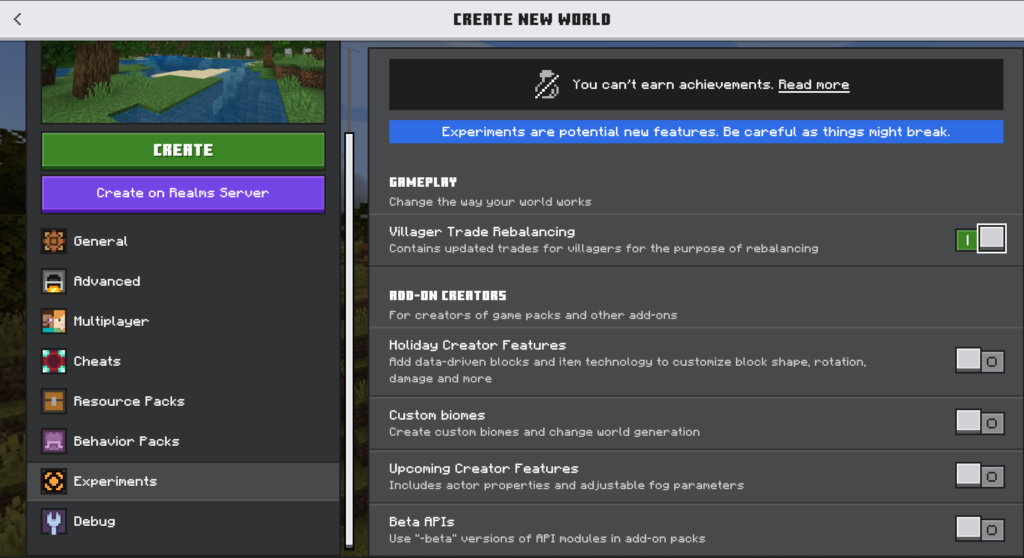
Step 3: Enable Experiments
Scroll down in world settings and find:
- “Experiments” section
- Toggle ON options like:
- Holiday Creator Features
- Upcoming Creator Features
- Beta APIs (if available)
Step 4: Start the Game
After enabling, press “Create” and load into the world.
Experimental features will now be active in your gameplay.
Types of Experimental Features
Minecraft experiments can include different categories:
1. Gameplay Experiments
New mechanics like combat changes or AI updates.
2. World Generation Tests
New biomes, caves, or terrain systems.
3. Block & Item Testing
Unreleased blocks or crafting items.
4. Technical Features
Command updates, redstone changes, or developer tools.
Risks of Using Experimental Features
Even though they are exciting, there are some risks:
- Worlds may crash
- Bugs can affect gameplay
- Some features may not save properly
- Updates can break old worlds
That’s why backups are strongly recommended.
How to Turn Off Experimental Features
If you want to disable them:
- Open world settings
- Turn OFF experimental toggles
- Save and restart world
Note: Some features may remain in the world even after disabling.
Best Practice Before Using Experiments
To stay safe:
- Always create a backup world
- Use a separate test world
- Avoid using main survival world
- Keep Minecraft updated
Why Players Use Experimental Features
Players love experimental mode because it allows them to:
- Try new updates early
- Explore upcoming content
- Test new mechanics
- Create unique builds with new blocks
- Stay ahead of updates
It makes Minecraft more exciting and fresh.
Conclusion
Enabling Experimental Features in Minecraft is a great way to explore upcoming content before official release. Whether you are on PC or Mobile, the process is simple and only takes a few steps.
Just remember to use a backup world because these features are still in development. If used correctly, experimental mode can make your Minecraft experience more fun, creative, and advanced in 2026.