
How to Change Minecraft Language Settings Easily (2026 Guide)
Introduction
Minecraft is played by millions of users around the world, and that’s why it supports a wide range of languages. Sometimes the game opens in a language you don’t understand, or you may simply want to switch to your preferred one for better comfort.
Luckily, changing the language in Minecraft is very simple and takes only a few steps. In this guide, you’ll learn how to easily change Minecraft language settings on both PC and mobile in 2026.
What Are Minecraft Language Settings?
Language settings control the text shown in your game, including:
- Menus and buttons
- Game instructions
- Settings options
- In-game messages
Minecraft supports many global languages, allowing players to enjoy the game in their own preferred style.
How to Change Language in Minecraft (PC – Java Edition)
Step 1: Open Minecraft
Start Minecraft Java Edition and go to the main menu screen.
Step 2: Enter Settings
From the main menu:
- Click on Options
- Then select Language
Step 3: Choose Your Preferred Language
A list of available languages will appear.
- Scroll through the list
- Select your desired language
- Click to confirm
Step 4: Apply Changes
Once selected:
- The game automatically updates
- All text changes to the new language instantly
No restart is usually required.
How to Change Language in Minecraft (Mobile – Bedrock Edition)
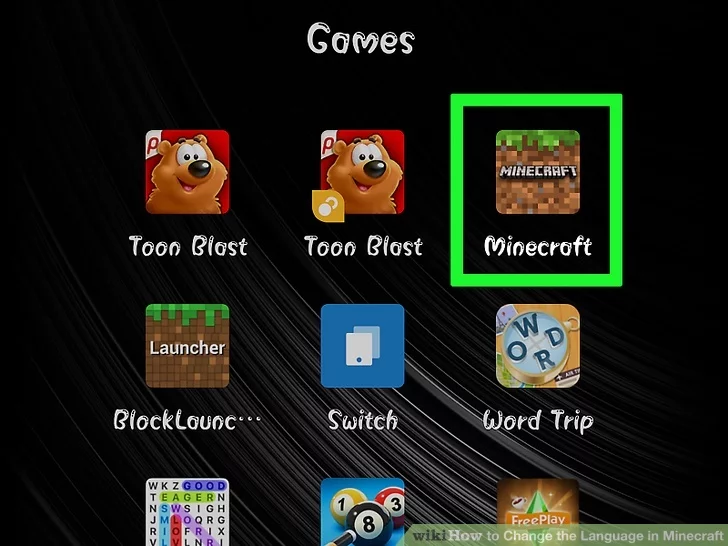
Step 1: Launch Minecraft App
Open it on your phone.
Step 2: Go to Settings
- From the home screen, tap Settings
Step 3: Find Language Option
Inside settings:
- Look for Language option
- Tap to open it
Step 4: Select Language
- Browse the available list
- Choose your preferred language
- The game will update automatically
Popular Languages in Minecraft
Minecraft supports many languages, including:
- English
- Spanish
- French
- German
- Portuguese
- Japanese
- Chinese
- Russian
Tips If Language Becomes Confusing
If you can’t understand the current language:
- Look for the globe icon 🌐 (language symbol)
- Select English to reset easily
- Restart the game if needed
Common Issues and Fixes
Language Not Changing
- Restart the game
- Reopen settings and try again
Wrong Language Appears Again
- Check game version updates
- Re-select language from settings
Option Missing on Mobile
- Update Minecraft from Play Store/App Store
- Reinstall if needed
Why Changing Language Is Useful
Switching language helps in many ways:
- Better understanding of controls
- Easier gameplay navigation
- Improved learning for beginners
- More comfortable gaming experience
Conclusion
Changing language settings in Minecraft is a quick and simple process that improves your overall gaming experience. Whether you’re using PC or mobile, you can easily switch to your preferred language in just a few steps.