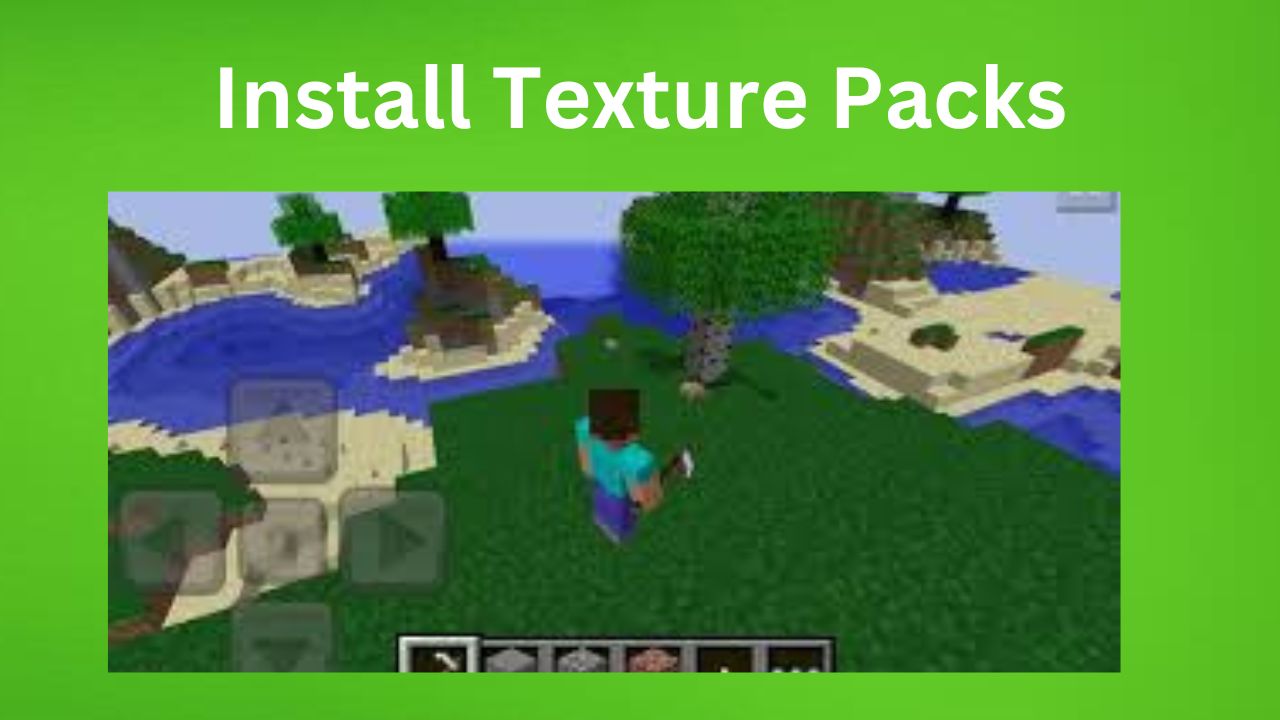
Complete Tutorial to Install Texture Packs in Minecraft
Introduction of Complete Tutorial to Install Texture
Minecraft is a world-building game where players can create structures, explore different locations, and survive against dangerous mobs. Although the game has simple graphics, many players prefer changing the appearance of the game by using Texture Packs. These packs improve the look of blocks, items, animals, and menus, making the game more visually impressive.
Complete Tutorial to Install Texture , Texture Packs are one of the easiest ways to customize Minecraft without changing its original gameplay. Players can use different styles such as realistic, cartoon, fantasy, or medieval textures to create a completely new experience.
What Are Texture Packs?
Texture Packs are files that replace Minecraft’s default textures with custom designs. These packs contain image resources that modify the appearance of blocks, weapons, tools, mobs, and the game interface.
After installing a Texture Pack, the game visuals become more detailed and attractive. Some packs focus on realistic graphics, while others create colorful or smooth textures for a unique gaming style.
Why Texture Packs Are Popular
Many Minecraft players install Texture Packs because they improve the overall appearance of the game world. They also help players build more creative and visually appealing structures.
Texture Packs are commonly used for:
- Better visual quality
- Customized gameplay design
- Realistic environments
- Enhanced building creativity
- More enjoyable gaming experience
Because of these features, Texture Packs are widely used in survival worlds, creative maps, and multiplayer servers.
How to Install Texture Packs in Minecraft
The installation process is simple and only takes a few minutes if done correctly.
Step 1: Download a Texture Pack
First, choose a trusted website and download the Texture Pack that matches your Minecraft version. Always check compatibility before downloading any files.
Step 2: Extract the Downloaded File
Most Texture Packs are downloaded in ZIP format.
To open the file:
- Use WinRAR or 7-Zip
- Right-click the ZIP file
- Select “Extract Here”
After extraction, a folder containing texture files will appear
Step 3: Open Minecraft Resource Pack Folder
Now you need to move the extracted files into Minecraft’s Resource Pack directory.
For Windows users:
- Press Windows + R
- Type %appdata%
- Open the .minecraft folder
- Find the resourcepacks folder
Paste the extracted Texture Pack folder inside it.
Step 4: Activate the Texture Pack
After moving the files:
- Launch Minecraft
- Open Settings or Options
- Click “Resource Packs”
- Select your installed Texture Pack
- Press “Done”
Minecraft will reload and apply the new textures automatically.
Recommended Texture Packs
Some popular Texture Packs used by Minecraft players include:
- Faithful Texture Pack
- Default 3D Texture Pack
- Chroma Hills Texture Pack
- Jicklus Texture Pack
- Xray Ultimate Texture Pack
Each pack offers a different visual experience depending on player preference.
Benefits of Texture Packs
Pros
✔ Improves Minecraft graphics
✔ Makes gameplay more immersive
✔ Allows complete visual customization
✔ Enhances creativity while building
✔ Gives worlds a fresh and modern appearance
Drawbacks of Texture Packs
Cons
✘ Some packs may reduce FPS on weak devices
✘ High-resolution textures can create lag
✘ Old packs may not support newer updates
✘ Installation can be difficult for beginners
Final Thoughts of Complete Tutorial to Install Texture
Texture Packs are one of the best ways to upgrade the appearance of Minecraft. They help players customize the game world and improve visual quality without changing the core mechanics of the game.
Whether you want realistic graphics or stylish cartoon textures, there are countless Texture Packs available for every type of player. Always download files from reliable sources and choose packs that support your Minecraft version for the best experience.
FAQs
Do Texture Packs affect gameplay? No, Texture Packs mainly change the visuals and appearance of the game.
Can I use Texture Packs for free? Yes, many websites provide free Texture Packs for Minecraft players.
Are Texture Packs available for mobile devices? Yes, Texture Packs can be used on Android, iOS, Windows, and other supported platforms.
Can Texture Packs work with Minecraft mods? Yes, most mods are compatible with Texture Packs in Minecraft.