How to Change Minecraft Language Settings Easily
Introduction
Language settings in Minecraft allow players to enjoy the game in their preferred language. Whether you want to understand menus more clearly or practice a new language while gaming, Minecraft makes the process simple on all devices. The game supports many international languages, making it accessible for players around the world. In this guide, you will learn how to change Minecraft language settings easily on Android, PC, and other platforms.
Why Change the Language in Minecraft?
Many players change the game language for different reasons. Some players prefer using their native language for better understanding, while others enjoy experimenting with different translations inside the game. Changing the language can also help younger players navigate menus and crafting systems more comfortably.
Benefits of changing language settings include:
- Better understanding of game menus
- Easier gameplay for beginners
- Improved communication while playing
- Fun way to learn new words and languages
- More comfortable gaming experience
How to Change Language in Minecraft on Android
If you are using Minecraft APK on Android, follow these simple steps:
- Open Minecraft on your device
- Wait for the main menu to load
- Tap on Settings
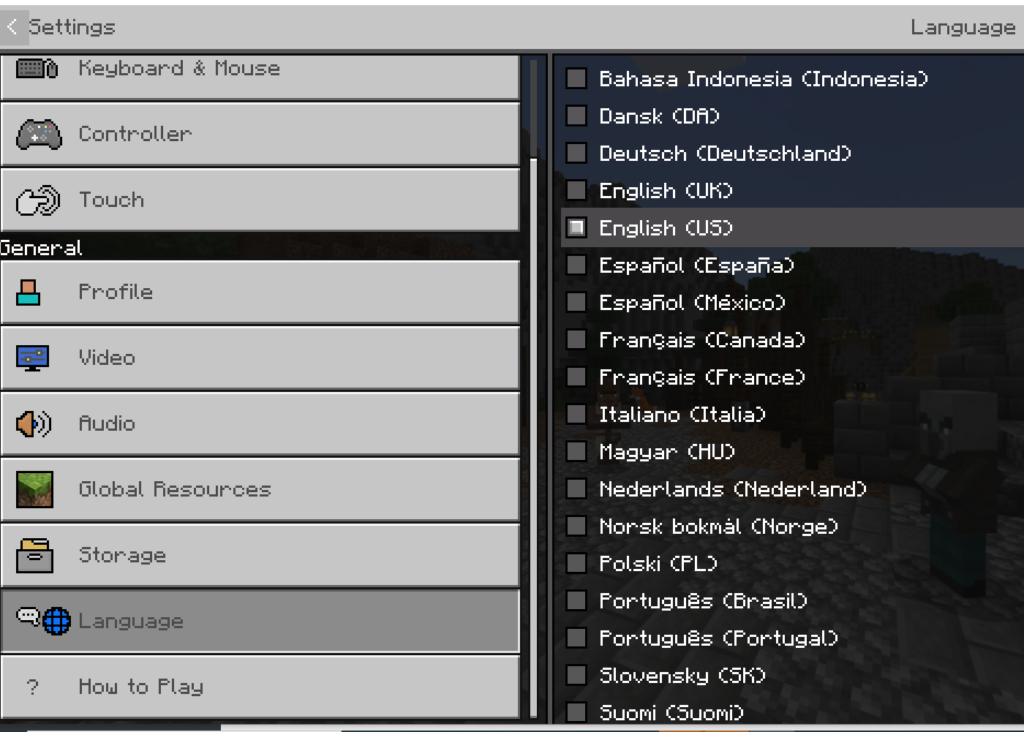
- Scroll down and select Language
- Choose your preferred language from the list
- The game will automatically apply the changes
How to Change Minecraft Language on PC
Changing the language on PC is also very easy. Follow these instructions:
- Launch Minecraft on your computer
- Open the main menu
- Click on Options
- Select the Language option
- Browse through the available languages
- Choose the language you want
- Click Done to save changes
Minecraft will reload the menu with the selected language.
Changing Language in Minecraft Bedrock Edition
Minecraft Bedrock Edition supports many languages across mobile devices, consoles, and Windows. The method is almost the same on every platform.
Steps for Bedrock Edition
- Open the game settings
- Find the language section
- Select a new language
- Save the changes
Some devices may require restarting the game to fully update all text.
Popular Languages Available in Minecraft
Minecraft offers a large collection of language options. Some popular choices include:
- English
- Spanish
- French
- German
- Arabic
- Hindi
- Japanese
- Chinese
- Russian
- Portuguese
The game even includes fun fictional languages for entertainment.
How to Restore the Default Language
Sometimes players accidentally change the language and cannot understand the menus anymore. You can still restore the original language by following the same steps carefully. The language menu usually contains a small globe icon, which helps identify the correct option even if the text is unfamiliar.
Simply open the globe icon section and select your original language again.
Does Changing Language Affect Gameplay?
No, changing the language does not impact gameplay mechanics, worlds, or saved progress. It only changes the text displayed inside menus, settings, subtitles, and item descriptions. Your worlds, skins, and achievements remain completely safe.
Tips for Choosing the Best Language
Here are a few helpful tips when selecting a Minecraft language:
- Choose a language you understand comfortably
- Use English if you follow online tutorials frequently
- Try new languages for learning practice
- Avoid unfamiliar languages if you are a beginner
Common Language Setting Problems
Sometimes players may face small issues while changing languages. Here are a few common problems and solutions:
Language Not Changing
Restart the game after selecting the new language.
Missing Text
Update Minecraft to the latest version.
Game Freezing
Clear cache files or reinstall the game if necessary.
Conclusion
Changing Minecraft language settings is a quick and simple process that improves the gaming experience for many players. Whether you play on Android, PC, or Bedrock Edition, Minecraft allows you to switch between many languages within seconds. By selecting the right language, players can enjoy easier navigation, better understanding, and a more comfortable gameplay experience.